Your Browser Extension, Your Settings
A cashback extension should help you save money, not get in your way. That's why you can control when and how it notifies you.
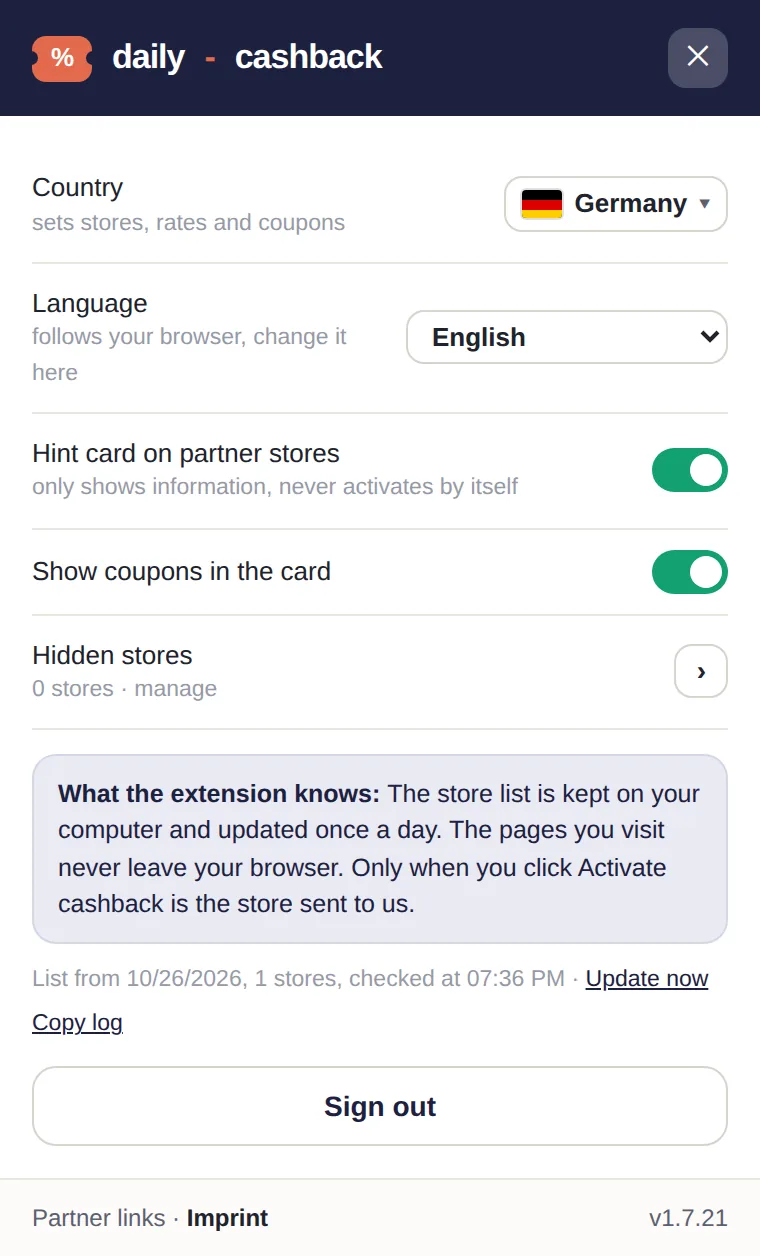
The extension settings: country, language, store hints and hidden stores.
Hiding shops
At the bottom of every notification card, you'll find "Don't show on this shop again". One click is all it takes to hide the card for that shop. You can view and re-enable hidden shops in your settings at any time.
Country and language
Your country determines which shops, cashback rates, and coupons you see. The language defaults to your browser settings but can be changed manually in the settings. For example, if you live in Austria but shop at German stores, you can set your region to Austria to see the rates that apply to you.
Notification card and coupons
- You can disable the notification card on partner shops entirely. In that case, the extension will only notify you when you click the icon yourself.
- You can also choose whether or not the card displays coupons.
- You can close the card at any time using the X. It won't reappear during your current session unless you activate cashback.
Removing the extension
You can remove the extension from your browser at any time. Your shop list and settings are stored locally on your device and will be deleted. Your daily-cashback.info account and your balance remain unaffected.
In short
You decide where the extension appears and what it shows. We explain how it handles your data in Cashback without reading your cart.
This article is part of our series on transparency and control for our browser extension. You can find the full overview of our principles at No automatic cashback: You decide with a click.